Rufus (from Reliable USB Formatting Utility with Source) is a lightweight utility tool with powerful features that allow you to format USB sticks or hard drives and make them bootable. Use this tool to, for example, install or start an operating system on a device like a PC. The program doesn’t require installation before launch, and even though Rufus can only be run on Windows, you can use it to create a bootable USB for all OS (Windows, Linux, UEFI, etc.).
When you download Rufus and open it up on your computer, it automatically detects your external storage media without prior configuration. You can format your device to a wide range of the most useful and commonly found file formats, namely, FAT, FAT32, NTFS, UDF, and exFAT.
The tool also has error detection during the formatting process in case something goes wrong, and allows you to see and save logs. Rufus can also be used to create a bootable USB stick or hard drive. Having a tool like that on your PC can be very helpful when you need to reinstall or update an operating system, have a problem with the current one, or want to launch a brand new OS on your desktop or switch to a different one, like Linux.
Why Should I Download Rufus?
Developed by Pete Batard (aka pbatard), Rufus is a free disk imaging software that doesn’t contain any advertising, so you don’t need to worry about any suspicious malware being installed while running the program. You need a tool like Rufus whenever you have issues with your OS and need to reinstall it, want to start up a device without an OS, or want to have a different OS on your computer.
To install the new OS (or re-install your old OS), all that is required is an external storage medium; you don’t need the original installation CD or DVD, the ISO of the system (Windows, Linux, UEFI, etc.), and Rufus. Rufus also claims to be twice as fast as its competitors when creating installation files from optical disk images, also known as ISO files.
If you want to create an installation disk or drive using software like Rufus, always first make sure that the external storage you’ll be using for this purpose is empty. You need to do this in order not to lose important files or data that cannot be recovered in any way. When you start the process of creating a bootable USB, Rufus will wipe the device you’re using and reformat it, so it can then load and install your selected ISO file.
Rufus doesn’t consume a lot of system resources to create portable, bootable USB drives and has amazing execution speeds that many users greatly appreciate. Despite looking very technical and complex at first glance, you only need to select a couple of options to get it working, so even less experienced or non-technical users will be able to operate it. Rufus also supports multiple languages to make it easier for people from around the world to understand how to use the tool.
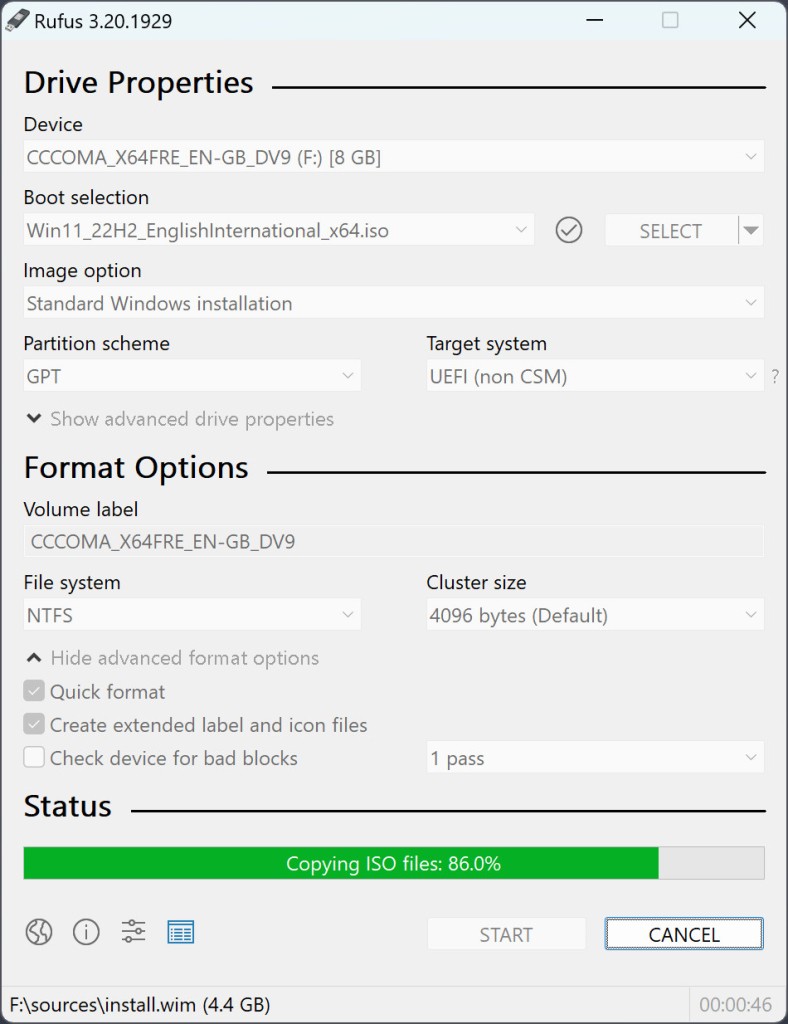
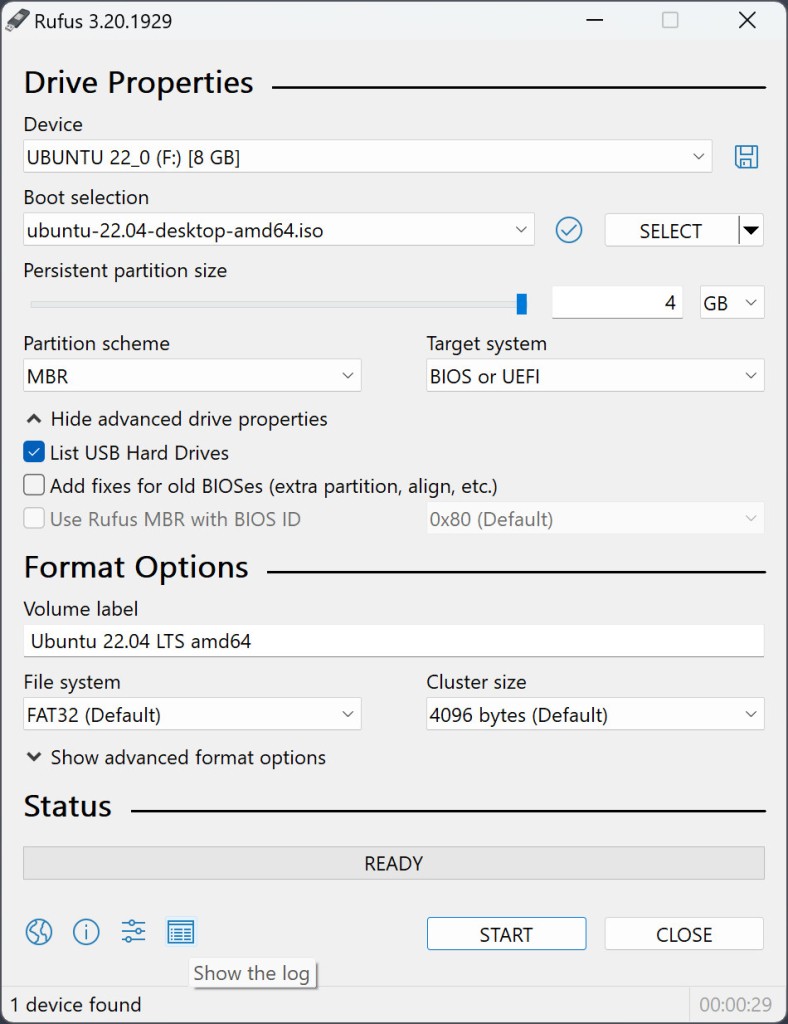
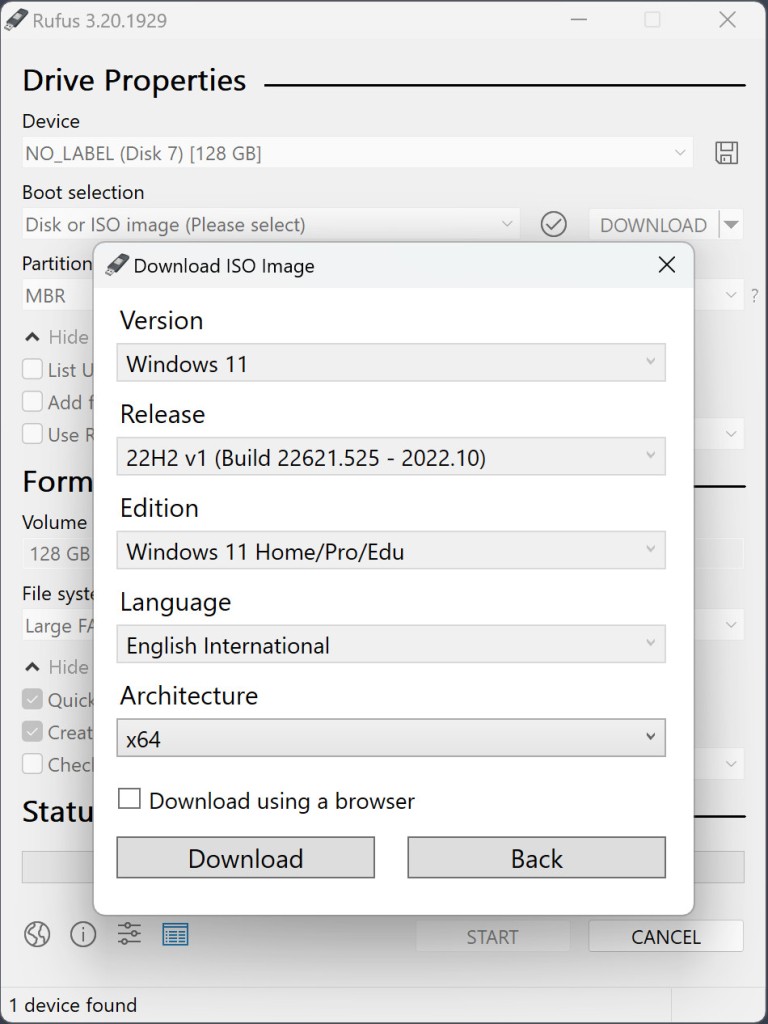
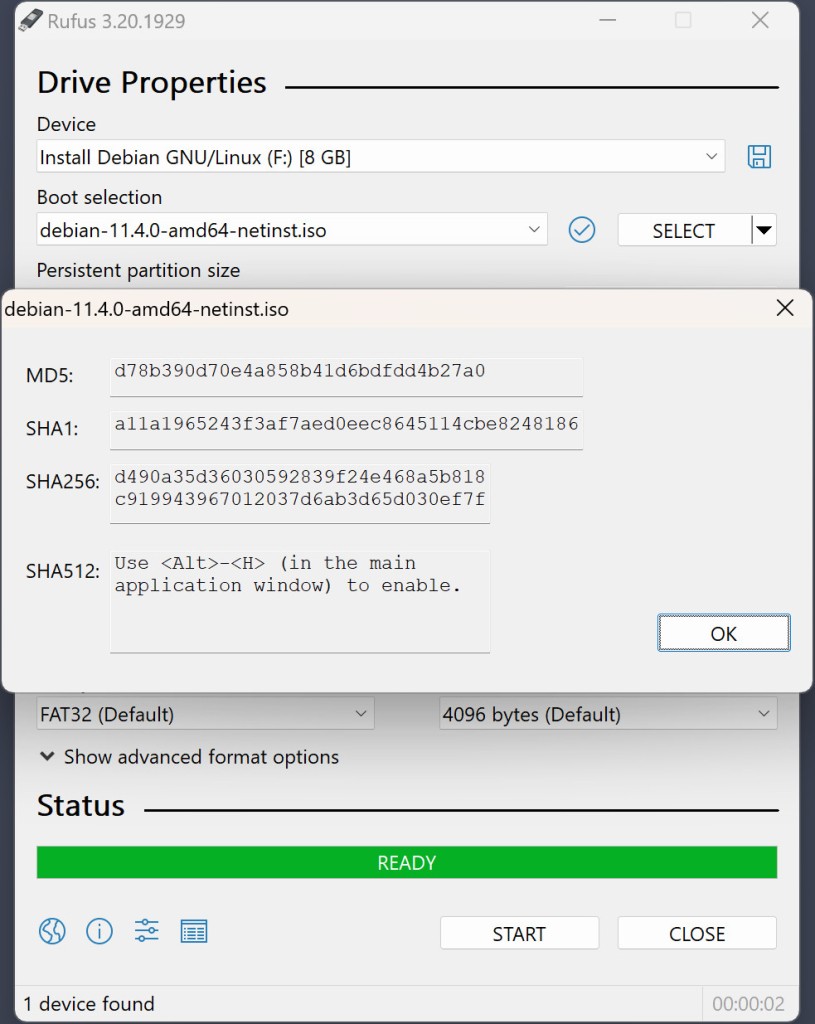
To create bootable USB drives with Rufus, you only need to select your external drive in the Device area, then choose the ISO file from your disk under Boot Selection. Next, select the file format into which you want to format your USB stick or hard drive. Optionally, you can also choose to provide a name for your bootable USB drive under Volume Label. Unless you really know how to configure the rest of the more technical and detailed options that Rufus offers, you can safely leave them alone on their default settings and just click Start. Even with those simple steps, you will get a bootable drive working on your external storage.
Is Rufus free?
Yes, you can download Rufus for free and use all its features at no cost. It’s a great utility to have on your PC, as it can be very helpful when your OS has issues.
What Operating Systems Are Compatible With Rufus?
While the tool supports creating bootable devices for basically any OS, you can download Rufus and launch it only on computers with Windows 8 or higher in 32 or 64-bit (follow our link).
What Are The Alternatives to Rufus?
If you’re looking for a tool that can be used on more OS, choose UNetbootin. This program can be launched not only on Windows but also on Linux and macOS, which is a huge difference compared to Rufus. UNetbootin offers the same options, so you can run it without an installation, format your devices, and use ISO images to create bootable installation drives from external storage.
Another direct competitor of Rufus is Ventoy. This tool works a bit differently, as it can simply be installed on your blank USB drive, and it will keep the option to store files on the disk while it becomes a bootable USB drive. Because of that, the process here is much more straightforward than when using Rufus. You can also use this program to install multiple OS on a single computer, and are able to select which one to launch.
If you’re only looking to install Linux on your device, you can choose to use a dedicated program for that, such as Universal USB Installer. It supports many Linux distributions, such as Ubuntu, Fedora, Kubuntu, etc., and can be run on PCs starting from Windows Vista.
UltraISO is an excellent choice for Windows users, as it doesn’t run on other systems. However, there are some big advantages to selecting this software instead. While it supports ISO images, it can also be used to work with other formats: BIN, CDD, MDS, and others. Apart from supporting the image selection from your computer directory, UltraISO can also work with images from optical drives such as CDs/DVDs. This program also gives the user the option to copy only a part of the image, while other tools mentioned above don’t have this feature.